SOURCE-CHECKED · BUSINESS DOCUMENTS
Google Drive DLP: block sensitive shares without blocking every file
Build a selective Drive DLP pilot with owner-based scope, eight downloadable text cases, an audit record, and checks for external-sharing enforcement.
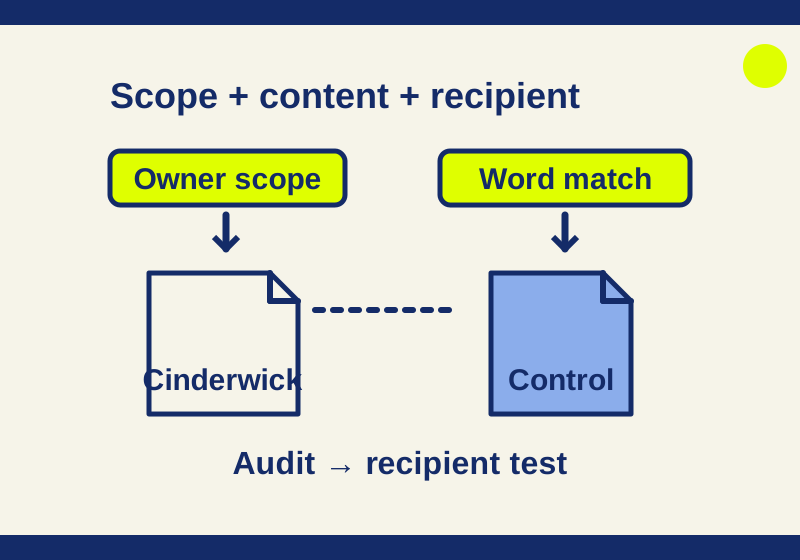
Google Drive data loss prevention can restrict outside sharing when a file matches a sensitive-content rule. To keep ordinary client documents shareable, give the rule a content condition and a narrow owner scope. Begin with an active audit-only rule, inspect its matches, then verify the blocking action from an outside recipient’s account.
Suppose a project uses the fictional codename Cinderwick. A workshop schedule without that word is a useful control. A public training document that mentions it presents a harder case: the word detector cannot tell whether the mention is confidential. That distinction changes which documents belong in the pilot.
Check your edition and the missing permission
Google lists base Drive DLP for Frontline Standard and Frontline Plus; Enterprise Standard and Enterprise Plus; Education Fundamentals, Education Standard, and Education Plus; and Enterprise Essentials Plus. Check the current entitlement list before planning a rollout. The advanced sharing boundaries described below have a narrower edition list.
The rule editor needs both View DLP rule and Manage DLP rule privileges. Service Settings automatically selects View, which can leave an admin able to see rules without being able to create or edit them. If that is your symptom, have the administrator managing roles check the specific privileges. Google’s privilege definitions identify them separately.
Set up the fictional codename rule
In the Admin console, open Security > Access and data control > Data protection. Under Manage Detectors, choose Add detector > Word list and enter Cinderwick. Google documents word-list matching as ignoring capitalization and symbols while matching complete words; an entry needs at least two letters or digits. Its detector instructions also explain the audit-only setup.
Create a data protection rule with the name Cinderwick external-share pilot. Select Google Drive and Drive files. In the rule’s content condition, choose All content > Matches words from word list and select the detector you created. Set Match mode to Match any word and the minimum total times any word is detected to 1.
For the initial audit phase, leave the enforcement action unselected and activate the rule when the pilot files are ready. A saved inactive rule cannot produce the detection observations you need.
Scope it to a small, authorized test organizational unit containing the document owner. In My Drive, policy follows the owner, even if another editor clicks Share. A shared drive is treated as the owner of its files. Putting an editor in the test unit while the owner remains elsewhere leaves you testing a different scope. Google describes owner-based scope and the shared-drive ownership rule.
Record include and exclude settings as well: groups take precedence when an organizational unit and group conflict. Keep the content condition present. A rule without one can reach all shared or modified files in scope.
Download eight files that expose different mistakes
The Drive DLP text kit contains eight fictional text files, a case manifest, an optional Node.js runner, its recorded local results, and a blank tenant observation sheet. Nothing in the files is live personal or project data.
The runner was executed against all eight inputs. It lowercases text and splits it into ASCII letter-and-digit tokens. These are local text results; no Google DLP tenant or external-sharing test was performed. They give you inputs for a tenant pilot, including a deliberate unwanted match and a title-only case.
| File and relevant content | Local body match | Local title + body match |
|---|---|---|
01-exact.txt: Cinderwick launch date: November 12. |
Yes | Yes |
02-lowercase.txt: The cinderwick budget is still under review. |
Yes | Yes |
03-concatenated.txt: CinderwickArchive contains an old public presentation. |
No | No |
04-hyphen.txt: The Cinderwick-Archive folder is due for review. |
Yes | Yes |
05-public-control.txt: Public workshop and registration details, no codename |
No | No |
06-policy-mention.txt: This training example uses Cinderwick as a fictional project name. |
Yes | Yes |
07-title-only.txt: The launch date is still under review. |
No | Yes |
08-quoted.txt: The folder is named “Cinderwick”. |
Yes | Yes |
The title for case 07 is Cinderwick briefing, supplied separately in fixtures.json. It is absent from the downloaded text body. For a Google Docs title test, create a document with that title and paste in the supplied body. Merely uploading the text file with its existing filename would test something else. All content covers titles, bodies, and suggested edits according to Google’s content-coverage guidance.
The codename strings in cases 03 and 04 differ by one hyphen. In this local runner, CinderwickArchive is a longer token, while Cinderwick-Archive produces a separate Cinderwick token. Quotes also separate tokens. Confirm those boundary cases with the actual Google detector; the runner does not model Unicode, OCR, or Google’s text extraction.
Case 06 catches a policy problem that a clean positive/control pair misses. The public training paragraph contains the exact word. If your organization needs that word in public materials, deciding that the document is harmless does not remove the detector match. Settle the permitted usage with the policy owner before applying a block, and include the real approved wording in your tenant tests.
To reproduce the local results, unzip the kit and run node run-local.mjs from that directory. The runner checks its input cases and writes local-results.json. Keep that output separate from tenant logs.
Keep the owner and recipient stable during the pilot
Use an authorized owner in the test scope and an outside test account your organization controls. Start with case 01 and case 05, keeping both identities unchanged between files. Add case 06 to expose the training-document conflict and create the separate Google Doc for case 07.
Then change one boundary at a time. Try an internal colleague as the recipient. Compare a similar file owned outside the selected scope, even if the person opening Share is inside it. These proposed comparisons separate content matching, owner scope, and recipient restrictions; they are not recorded Google outcomes.
Download the blank pilot record and add a row for each actual attempt. It has fields for the rule, file ID, owner or shared drive, scope, recipient, log event, action, recipient opening result, and time. Leave an observation blank when you have not made it. The text kit’s local Yes/No results do not belong in the Google event column.
With the audit-only rule active, attempt the shares and inspect Reporting > Audit and investigation > Rule log events. Filter by date and the rule or file resource where available. Google says entries usually appear within an hour of an action; this is not a guaranteed deadline. An anonymous actor can represent a rescan, and the actor can be empty for automatic system actions. The rule-log reference explains these fields and access requirements.
An audit event establishes a match for that event. It supplies no observed blocking result because the rule took no enforcement action. A missing control-file event also leaves scan completion unresolved. If the matching file has no event, first check its owner scope, condition, activation, file eligibility, and elapsed time.
Choose the actual sharing boundary before enforcing
For an external-only policy, Google’s Drive guidance describes Block external sharing. Warn on external sharing allows the user to proceed after the warning. Switching from audit-only to Warn therefore does not enforce the stop this pilot is intended to check. Google’s action descriptions distinguish the outcomes.
The newer sharing-boundary interface uses Block sharing with Sharing conditions. Its allowlist option can block both internal and external sharing except for the selected recipients; its denylist option blocks selected recipients. Read the exact boundary in your rule before activation so the internal-colleague comparison still tests the policy you intended.
Google lists these advanced boundaries for Frontline Plus, Enterprise Standard and Enterprise Plus, Education Standard and Education Plus, and Enterprise Essentials Plus. Frontline Standard and Education Fundamentals appear in the base DLP list but not this boundary list. Use the sharing-boundary documentation for that feature’s entitlement and settings.
After the changed rule has taken effect, repeat the same matching and control cases with the same owner and recipient. Attempt to open the file from the outside account. Record the actual opening result alongside the relevant log event. Also check the internal account against your chosen boundary. An audit match and an editor’s successful click on Share each leave the recipient’s final access unmeasured.
Check extraction before rewriting a detector
The text kit uses small .txt files to keep the input visible. Google also lists native Docs, Sheets, and Slides and formats including .docx, .pdf, and .xlsx. Comments in Docs, Sheets, Slides, and Drawings are not scanned, nor are password-protected contents. A codename placed only in a comment would be a poor positive case. Image scanning uses OCR on a best-effort basis, including images in PDFs when OCR is enabled.
Drive analyzes the first 10 MB of extracted text. Content extraction for non-native formats supports files up to 50 MB; native extraction has no size limit. Extraction and analysis are separate limits, so an unrestricted native extraction size does not mean every byte of its text is analyzed. ZIP scanning has a 1,000-file limit. Google’s content limits give the boundaries; its scanned-content list covers formats and exclusions.
Rule changes can take up to 24 hours, often less, and file scanning can take hours, a day, or longer. Record when you activated or changed the rule. A control file that opens during propagation does not yet establish a lasting exemption. Changing the rule also scans the latest revision of previously uploaded files.
Find the policy behind an unexpected block
In supported Docs, Sheets, Slides, and Vids files, the Security Limitations view can identify restrictions imposed by the file owner, shared-drive manager, or organization. Sharing restrictions can come from Drive DLP, trust rules, or trusted domains. Google’s Security Limitations guide names those causes; this view is not documented for every uploaded file type.
If case 05 is blocked, inspect the named restriction and matching rule before weakening the Cinderwick detector. A different policy may be responsible. If case 06 is blocked by the intended codename rule, the detection may be accurate even though the public training use needs policy review. Give the responsible admin the actual file ID, owner, recipient, event, and attempted time so they can investigate the same attempt.
Source scope: Google guidance was checked October 7, 2026. The eight local results are an ASCII text illustration. Google tenant detection, log events, recipient access, and enforcement remain checks to perform in your authorized environment.
KEEP GOING
More to explore.
SOURCE-CHECKEDSharing workflows
How to limit access to a Google Drive folder without changing its parent
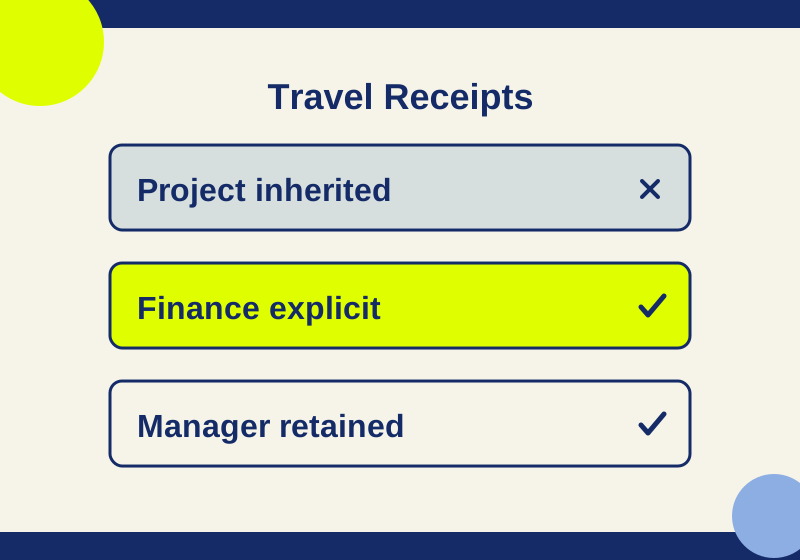
Map each route into a restricted subfolder and check the Manager, group, and General access exceptions.
SOURCE-CHECKEDBusiness documents
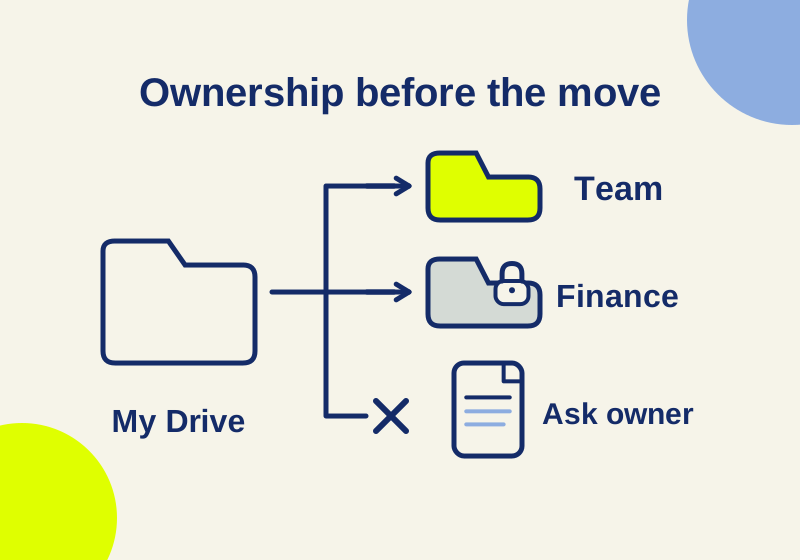
Google My Drive vs shared drives: move the files without breaking access
A departing colleague’s folder needs several different handoffs, including one file that cannot move.