SOURCE-CHECKED · APPS & THE WEB
Reduce steady background noise in Audacity without erasing speech
Create a Noise Profile from noise alone, then use Residue to check whether Audacity would remove speech.
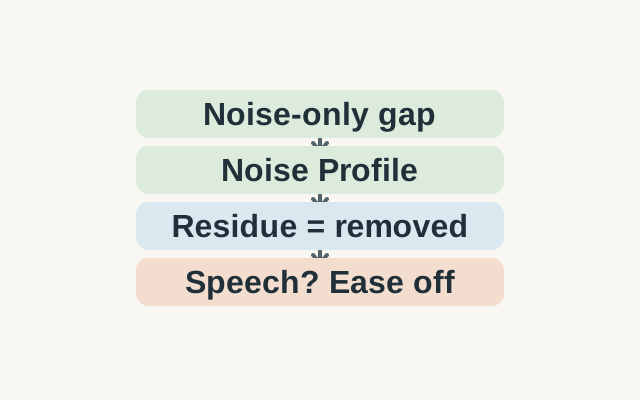
Audacity’s Noise Reduction can reduce steady sounds such as fan noise, hum and hiss. Use one selection to show Audacity the noise by itself, then another to check what it would remove from the recording.
Capture the noise
Suppose a recording has fan noise before the first word and beneath the speech. Select part of the opening that contains only the fan. Go to Effect > Noise Removal and Repair > Noise Reduction, then click Get Noise Profile. Audacity uses the selection to estimate the noise floor at different frequencies. Including a word would make it a poor sample of the fan alone.
Check what would be removed
Select the region you want to clean, including the speech, and open Noise Reduction again. Choose Residue and click Preview. You will hear the sound that Reduce would filter out.
Listen for recognizable syllables. If you hear them, lower Noise Reduction or Sensitivity and preview again. Lower Noise Reduction can leave more fan noise. Lower Sensitivity reduces the chance of losing speech but increases the chance of artifacts. When little wanted speech is audible in Residue, choose Reduce and click OK.
Audacity says the effect is unsuitable for isolated clicks or irregular noise such as traffic. Loud noise, or noise close to speech in level or frequency, may still cause distortion.
The steps come from the Audacity Noise Reduction manual. The fan recording is a hypothetical example.
KEEP GOING
More to explore.
SOURCE-CHECKEDImage workflows
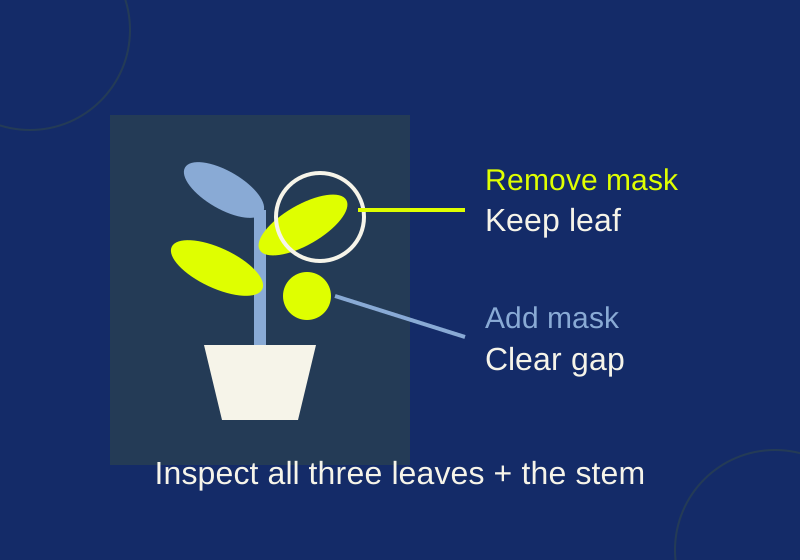
Remove a photo background in Windows Photos without cutting off the subject
Use the background mask in the right direction, then compare the subject with the original before saving.
SOURCE-CHECKEDEveryday tech
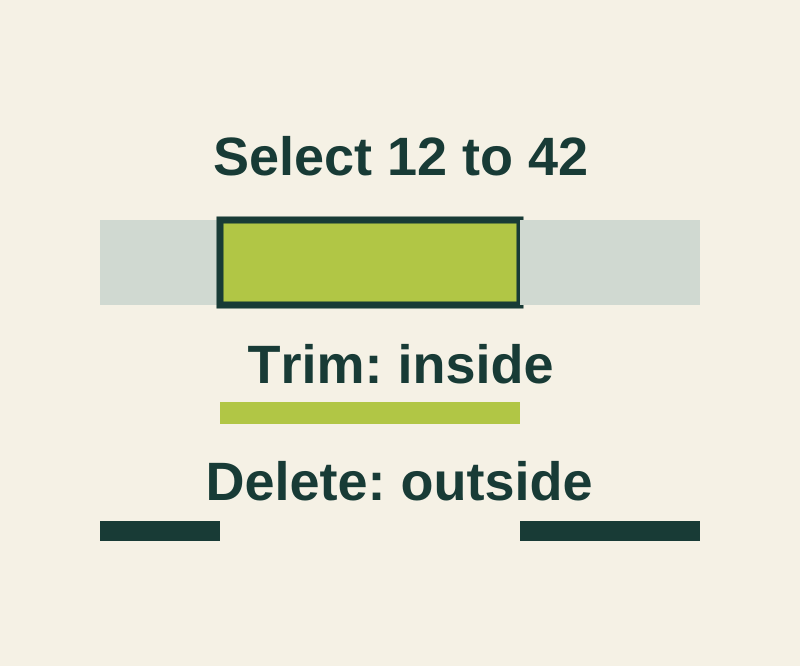
Trim an iPhone voice memo without deleting the part you meant to keep
Keep the selected passage or remove it, then preserve the original with Save as New Recording.