SOURCE-CHECKED · APPS & THE WEB
How to find where a movie is streaming with JustWatch
Find a movie on JustWatch, match your country and subscription, and read rental, purchase, free, and promoted offers before paying.
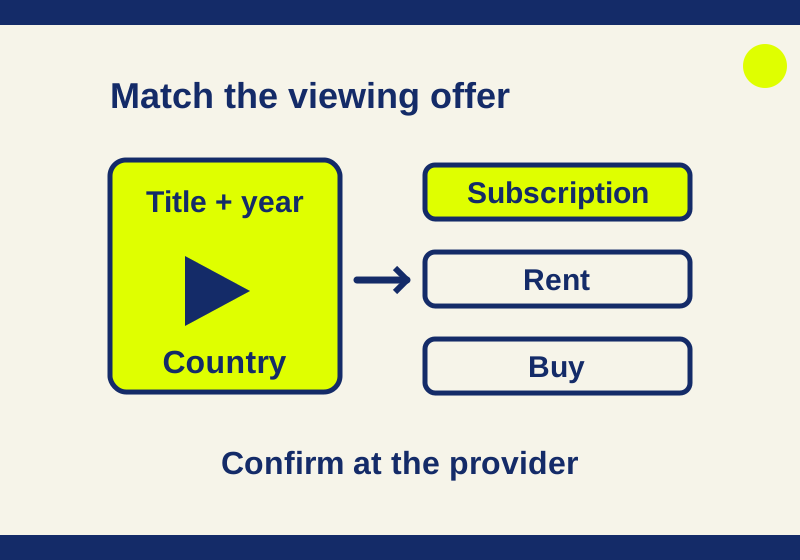
JustWatch lists where a movie is available through subscriptions, rentals, purchases, and other offers. Search for the title, match its release year and your country, then read the access label on the provider row. That last step helps you find a film on a service you already pay for without mistaking a rental for included viewing.
A provider logo alone does not answer whether you can watch the movie with your existing account. The same page can contain a direct subscription, a subscription channel sold through another company, and a separate store purchase. A promoted “free” offer can even refer to similar movies instead of the one you searched for.
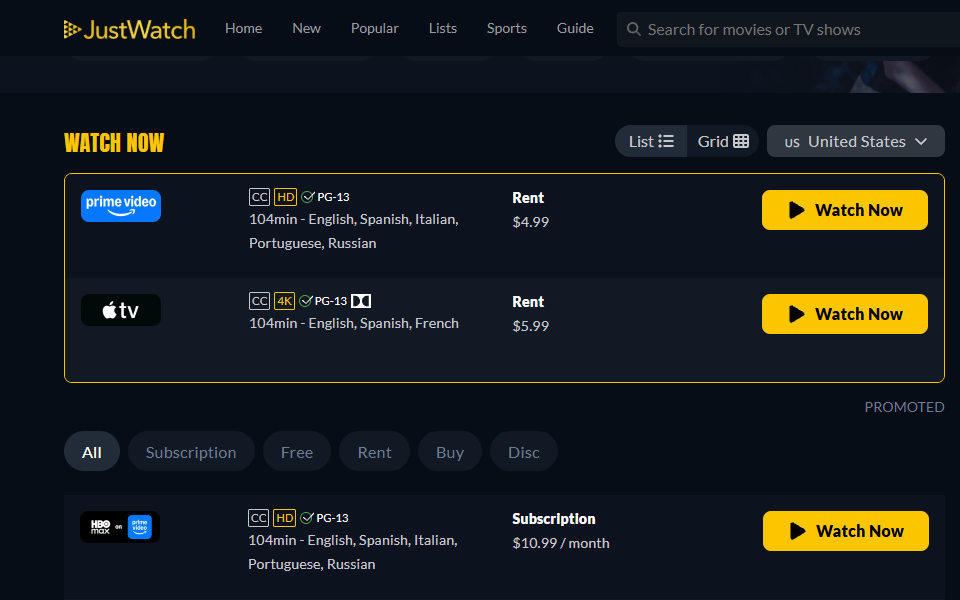
JustWatch’s US listing for Practical Magic (1998), captured October 2, 2026. The screenshot is a dated example; offers can change. Provider logos belong to their owners.
Find the exact title in the right country
Type the movie’s name into JustWatch’s search and open its title page. Check the year before comparing providers, especially when the name could refer to a remake or another production. A provider list for a different film will not help you find the one you intended to watch.
The Practical Magic (1998) page is the working example here. Its Watch Now section showed United States during the October 2 inspection. Clicking the country selector opened a selection dialog. Choose the country where you are looking for access; the US examples below describe the US listing, not offers checked in other countries.
The country check belongs before the provider comparison. If you are planning a movie night while traveling, use the listing for your actual location as a starting point and confirm the offer with the provider. An offer listed for home is not evidence that the provider will give you the same access elsewhere.
Read what each access label means
The title page has All, Subscription, Free, Rent, Buy, and Disc filters. Start with Subscription when your question is whether a service you already pay for lists the movie. All is useful for seeing other options if that search comes up empty.
| Filter | How to use the offer |
|---|---|
| All | Compare the different access methods, reading each row’s label. |
| Subscription | Look for an offer matching the subscription and billing route you have. |
| Free | Check whether the named movie has a free offer, rather than following a nearby promotion. |
| Rent | Read the provider’s rental charge and terms before proceeding. |
| Buy | Read the provider’s purchase offer and terms. |
| Disc | Look for a physical copy; this is a separate option from streaming it online. |
Do not infer a rental’s viewing period from its appearance on JustWatch. The provider’s actual rental terms answer that question. Likewise, a purchase row tells you where a purchase offer is listed, without replacing the terms shown by the store.
This distinction is useful even when every logo looks familiar. If you subscribe to a streaming service and see its associated store in Rent, open Subscription to check for an included offer before accepting the store’s charge.
Match a subscription to the way you pay for it
In the October 2 US inspection, Practical Magic had subscription rows for HBO Max and HBO Max Amazon Channel. Rental and purchase rows included Amazon Video, Apple TV Store, and Fandango At Home. An October 7 read of the public page also listed YouTube TV under subscription and Plex among the rental options.
HBO Max and HBO Max Amazon Channel appear as separate offers. If you pay HBO Max directly, start with the direct row. If you pay for the channel through Amazon, examine that channel row. The shared HBO Max name does not establish that either link will accept the account you have.
For a reader who already pays for two services, the first useful comparison is between those existing subscriptions. Open the matching offer and check that the provider page names the right film and access method. If it asks for a rental charge, return to the listing and check which row you followed before paying. An additional subscription is not the automatic next step when a familiar logo leads to a charge.
No provider checkout or playback was performed for this example. The rows are evidence of what JustWatch listed, rather than proof that a particular account could play the film.
The “free” promotion beside a movie may mean something else
The Practical Magic page explicitly said there were no free streaming options for that film during both the October 2 inspection and October 7 public-page read. Nearby, a promoted Amazon Prime Video offer referred to free access to similar movies. Reading just “free” would miss the change of subject.
Check what the offer actually names. A promotion for similar movies answers a different question from free access to Practical Magic. A trial offer also needs its own terms; its placement beside a title does not establish that the title is included.
Some rows are labeled PROMOTED. Use that label to recognize placement, then read the film name and access method as you would for another row. Position at the top of the page is not a substitute for matching the offer to your intended movie.
Use the catalog when you have no movie in mind
The US catalog has Movies and TV Shows sections. The inspected catalog included filters for genre, runtime, release year, price, rating, production country, and age rating. These give you a more manageable search than opening a provider for every possible movie.
Suppose you want a film under two hours and would prefer to use an existing subscription. Start with those constraints, then look through a genre that suits the evening. This is a suggested browsing method, not a claim that a particular filtered result or provider was tested. Once a title looks promising, open its page and make the same country and access-method checks.
For a TV series, take the season or episode you want to the provider’s page. A listing for the series name alone does not establish access to that particular episode. If captions are essential, check them there too. JustWatch rows can display caption, language, HD, and 4K labels, but the exact provider offer is where to confirm what is available to your account.
Title pages also show Watchlist, Seen, and Notify me controls. A sign-in prompt offers Watchlist syncing. You can begin with a public lookup and keep the title handy before deciding whether to use those account features; signed-in syncing and alert delivery were outside this inspection.
Public catalog, title page, and country dialog inspected October 2, 2026; linked US listing read again October 7. Other-country offers, payments, playback, caption availability, signed-in features, and alert delivery were not tested.
KEEP GOING
More to explore.
TESTEDApps & the web
Find field-recorded nature sounds on Earth.fm and check free access
Recording details tell you the place and artist; the player and membership page explain what you can hear for free.
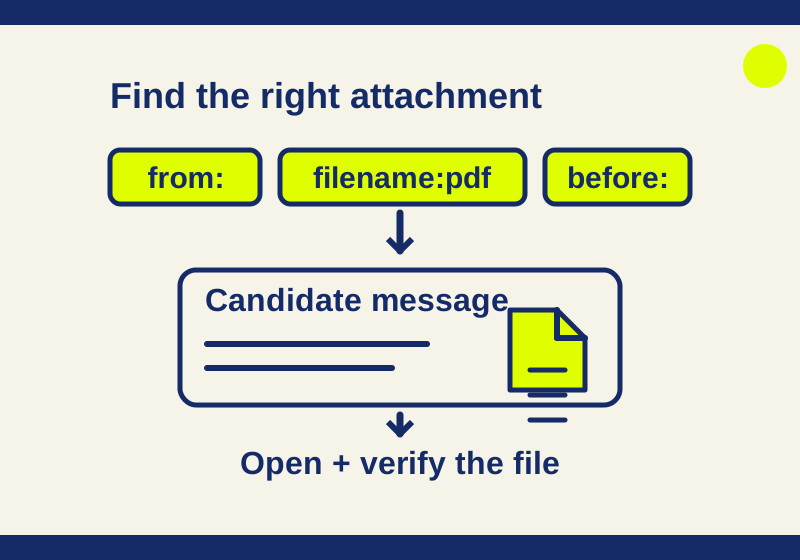
SOURCE-CHECKEDApps & the web
How to find old emails and attachments in Gmail
Find old PDFs, archived receipts and booking emails with search recipes you can adapt and download.