SOURCE-CHECKED · APPS AND WEB
Save your parking spot in Google Maps, plus the details a pin cannot show
Save a Google Maps parking location on Android or iPhone, check the 48-hour iPhone limit, and keep a usable garage note for the walk back.
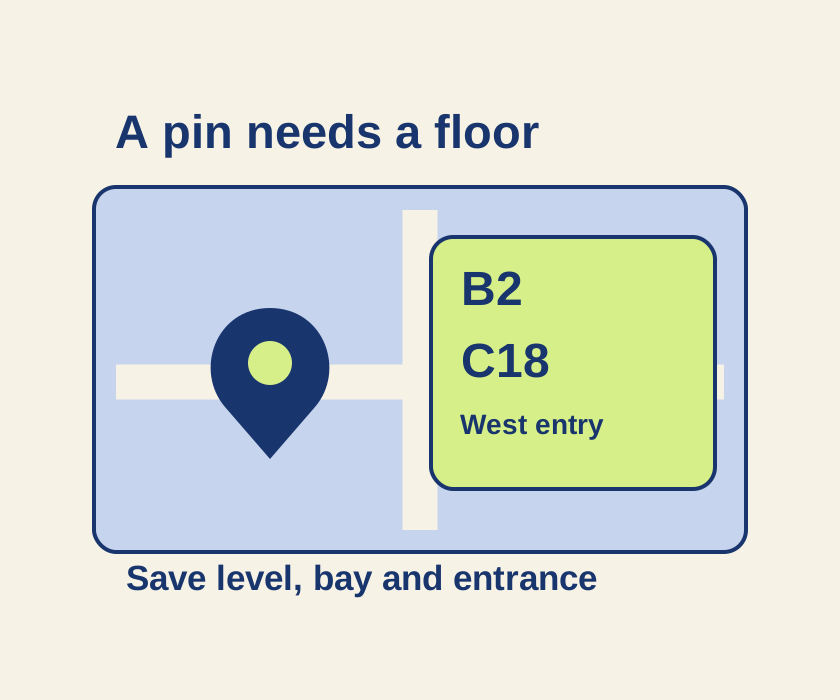
Save the pin when you park, then record the garage level and walking entrance separately. A map location can help you return to the building, but it cannot tell you which floor holds your car or which pedestrian door gets you back inside.
Save and find the pin
On Android, tap the blue dot that marks your location, then tap Save your parking. To add a note or photo, open Parking location from the search bar and tap More info. You can also share it from More info. When you return, open Parking location and tap Directions. Change location moves the pin; Clear removes it. Google says the saved location stays until you remove it.
On iPhone, tap the blue dot and choose Saved parking. To return, tap the You parked here pin or search for Saved parking, then tap Directions. Change location and Share are available under Saved parking. Google says iPhone parking locations remain for 48 hours unless you remove them or resume driving.
Record the walk back
Imagine parking in a garage and writing this note: “Level B2; blue zone; bay C18; pedestrian exit beside elevator 3; return through west entrance, not the street ramp; pay station near elevator 3; posted ticket time: 14:20.” Replace this illustrative note with the signs and route you actually see.
On Android, the note can go in More info. On iPhone, keep the floor and entrance details in your own Notes app. A screenshot of the map pin alone will not capture the garage level. If you photograph a sign, include enough entrance context to recognize the way back while keeping other people and license plates out of the frame.
The garage note helper gives you separate fields for the level, bay, pedestrian entrance and an optional ticket time, then makes a plain-text note you can select and copy. Save that text in your own Notes app or the Android parking note. The helper does not read your location, connect to Maps or set an alarm; refreshing clears its entries.
Before leaving, check that the pin marks your parked location and that your note names the floor and pedestrian entrance. If the map leads you to the right building but the wrong floor, use the note for the final part of the walk.
For a return after 72 hours, such as an airport trip, keep an independent note and map place before you leave: the iPhone parking pin has a 48-hour limit. Google also documents optional automatic parking saving on iPhone after a car Bluetooth, CarPlay, or USB connection disconnects. Its setting is under Navigation > Automatically save parking; Motion & Fitness is an optional related setting. If you use automatic saving, check the actual pin before walking away.
Source scope: These steps come from Google’s Android and iPhone instructions, checked October 9, 2026 KST. Phone operation and navigation were not independently tested.
KEEP GOING
More to explore.
SOURCE-CHECKEDApps & the web
Find wheelchair-accessible transit options in Google Maps
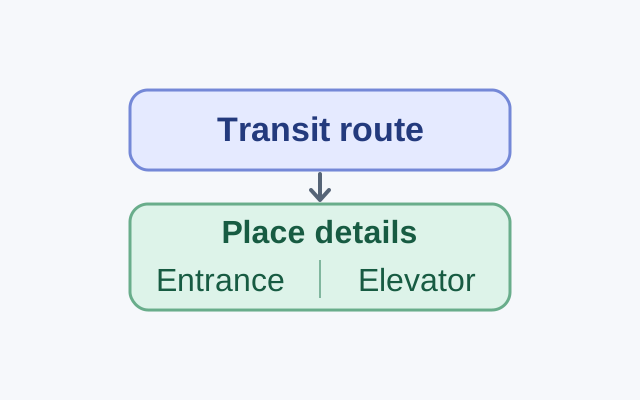
Google documents a transit route option on computers and Android. Its Android guidance also explains place attributes, which are available only in certain countries.
SOURCE-CHECKEDApps & the web
Organize a shared Google Keep note with labels only you see
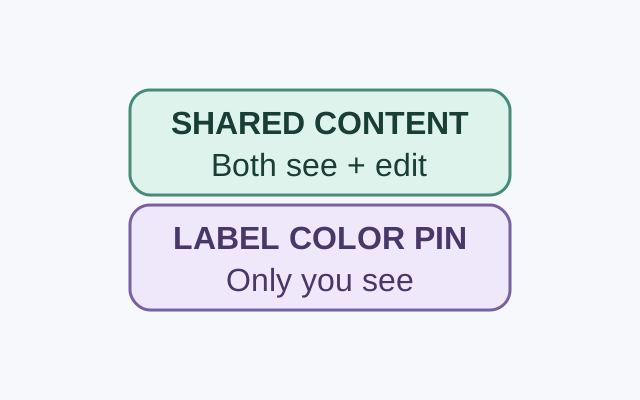
A collaborator can see and edit a shared note’s contents. Google says only you can see the labels, colors, and pins you apply to it.