TESTED · WEB RESEARCH
Organize Chrome bookmarks with a 12-link folder collection
Organize Chrome bookmarks with a real 12-link collection, nested folders, clear titles, and a working search example you can copy.
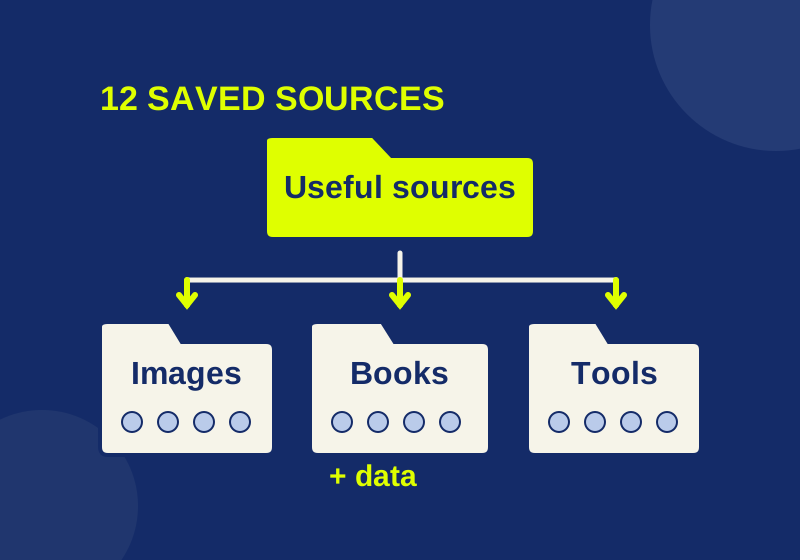
Start with one parent folder, then divide saved websites by what you expect to look for later. The Useful web sources bookmark collection contains 12 links in three child folders: Images, Books and data, and Browser and tools. You can browse all 12 links with short descriptions before choosing which ones to keep.
The collection uses titles such as “World Bank indicators” so a bookmark has a recognizable name when it appears in a search. The folder map contains the same titles, URLs, folders, and notes as JSON. You can use the browsing page without changing your browser’s bookmarks at all.
A small collection with actual destinations
Images holds places to find images and their accompanying records or context:
- Met collection helps you find an object record and its image information.
- Library of Congress free to use points to selected historical image sets.
- Wikimedia Commons lets you find media and check the license on an individual file.
- NASA image articles pairs space images with descriptive context.
Books and data groups reading sources and data catalogs:
- Project Gutenberg books has classic texts in several reading formats.
- Data.gov catalog is a catalog for US government datasets.
- World Bank indicators provides country and indicator data.
- Our World in Data charts combines charts with explanations and underlying sources.
Browser and tools holds references you might need while using the web:
- MDN web reference explains browser and web terms.
- Chrome Help home is the starting point for Chrome settings help.
- Chrome bookmarks help covers bookmark management.
- Microsoft 365 web apps describes Microsoft’s web offering and account requirements.
These bookmarks lead to resource hubs. The HTML file contains the links; it does not download books, pictures, or datasets from the destinations. Check an individual resource’s terms before reusing its material. A folder called Images cannot tell you whether a particular photograph is licensed for your project.
Build the folder tree in Chrome
Open Chrome’s Bookmarks and lists menu, then Bookmark Manager. Create a parent folder named “Useful web sources” with the manager’s More > Add new folder command. Open that parent before creating the child folders, so Images, Books and data, and Browser and tools sit inside it. Google’s current bookmark instructions describe the folder command and the address bar star for saving a page.
Useful web sources
  Images (4 links)
  Books and data (4 links)
  Browser and tools (4 links)
In the Windows Chrome trial, the parent was created under the bookmarks bar. Each child was opened before adding its four bookmarks through the manager’s add-bookmark dialog. Each entry received the exact title and URL shown in the downloadable collection. The finished tree contained one parent, three children, and 12 saved URLs.
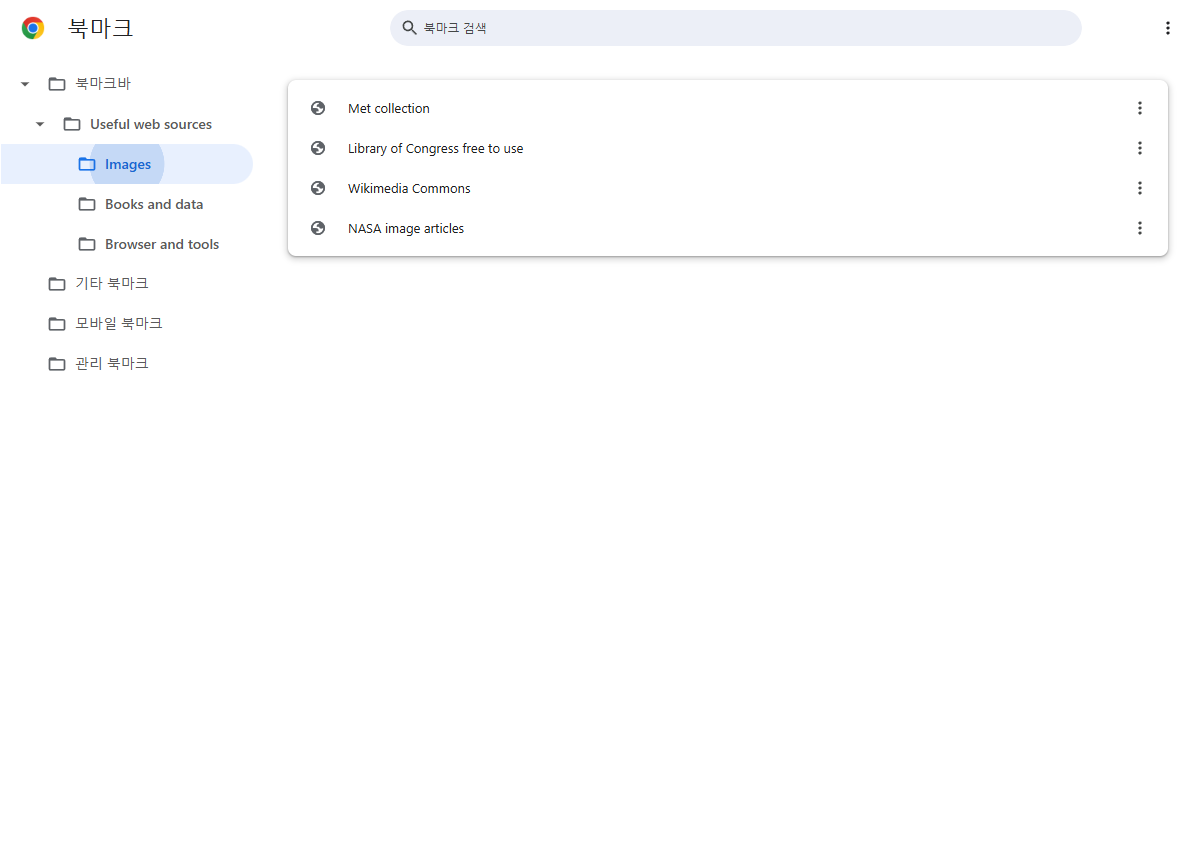
The test browser’s interface was in Korean; the collection’s folder and bookmark names are in English. The screenshot shows the actual finished Images folder, including the Met, Library of Congress, Wikimedia Commons, and NASA entries.
If you are building the collection manually, choose a child folder before adding its links. “Met collection” belongs in Images because you will use it to find object and image records. “Project Gutenberg books” belongs in Books and data because you will use it to find a text. Data.gov helps locate datasets, while MDN explains browser and web terms. Putting both under a broad “Useful” folder would hide that difference when you browse the list.
To add the whole collection, save the bookmark HTML file and use Bookmark Manager’s More > Import bookmarks command to select it. Google’s bookmark import help describes importing an HTML file. A separate import of this exact download into a new, empty Chrome profile preserved the parent, all three child folders, and the 12 titles and URLs.
You can also open the downloadable bookmark HTML as a normal page and inspect its links. The annotated browsing page adds the purpose of each destination. This is useful if you want only the four image sources and have no reason to add the other eight.
Give a bookmark a title you will remember
“World Bank indicators” includes the provider and the subject. The title tells you what the bookmark leads to before you open it. A title such as “Data” would be harder to distinguish from Data.gov, a chart page, or a spreadsheet you also saved.
Use the provider and the task or subject when naming your own additions. “Met collection” and “Data.gov catalog” are examples from the collection. Keep an object’s actual title when saving an individual museum record; replace an unhelpful site-wide title with a short description only when you need one to recognize the destination.
Folder names and bookmark titles answer different questions. “Images” tells you which shelf to browse. “NASA image articles” tells you which item to open on that shelf. You can keep the group name short because the bookmarks carry the more specific information.
The ready-made collection includes a general museum search page and general data catalogs. When a task depends on one item, save that item’s own page URL as an additional bookmark. A link to the Met collection cannot take you directly back to a specific painting. A link to the World Bank home page cannot stand in for the particular indicator page you were reading.
Find a saved link without remembering its folder
In the Chrome trial, a Bookmark Manager search for “World Bank indicators” returned that exact entry. “Project Gutenberg books” did not appear among the results.
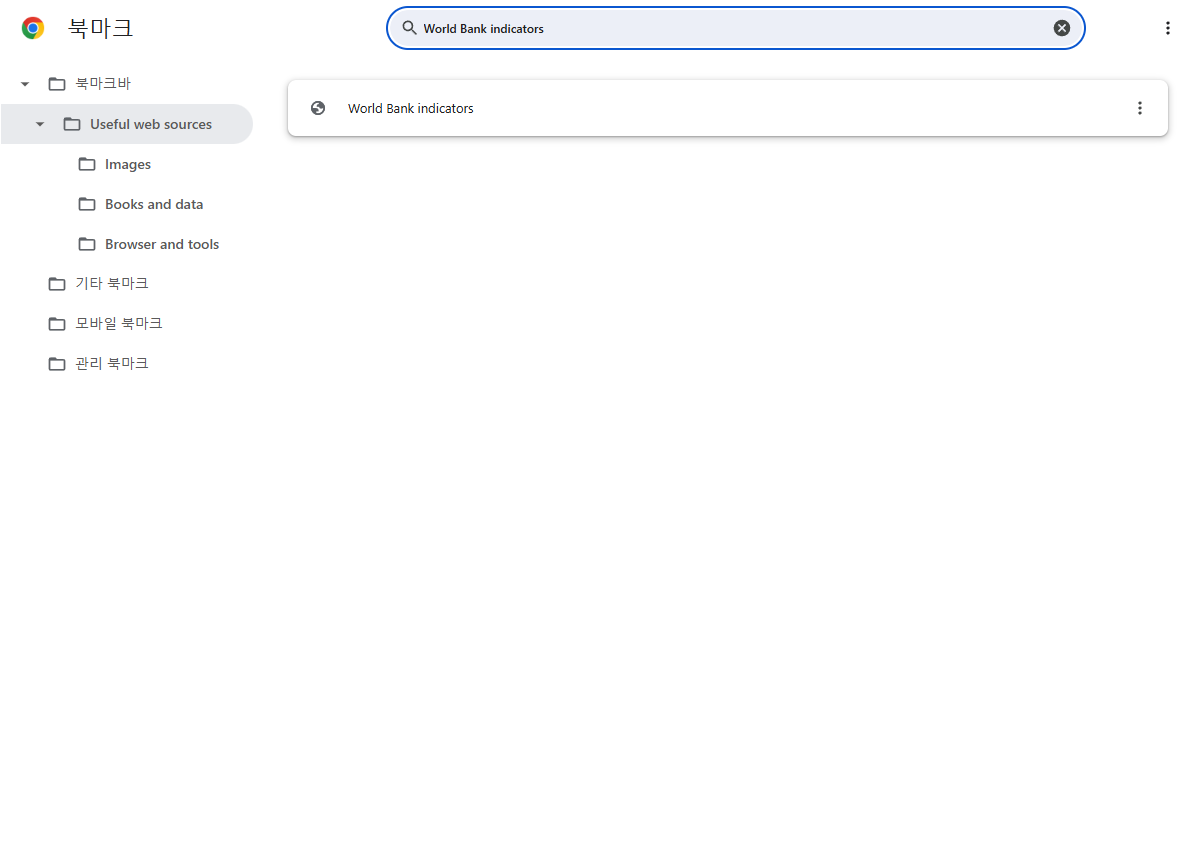
A separate search for “zzq-no-such-reference” returned no matching bookmark. Clearing the query made it possible to open Images again and see its four entries. The searches were performed in a new profile containing only this collection, so they say nothing about the number of matches in your existing profile.
When you cannot find a bookmark, start with a distinctive provider or title word. Clear the query before browsing the folder tree again. In this collection, “World Bank” points you toward an indicator source, while “Gutenberg” points you toward books. If you gave both bookmarks the title “Research,” the names would provide less help in recognizing either result.
Google also documents an address bar shortcut: type @bookmarks, press Tab or Space, then enter a keyword. That route is useful when you want a saved link without opening Bookmark Manager. The address bar shortcut was checked against Google’s instructions; the actual trial used the manager’s search box.
Source and test note: Google’s Chrome bookmark help supplies the documented menu and address bar instructions. Isolated, unsigned-in Windows Chrome 154.0.8037.93 profiles were used to create and search the folders, confirm the 12 saved titles and URLs, and separately import the downloadable collection. The browsing page was checked at a 390-pixel width. Dragging, sorting, renaming, mobile use, and account sync were not tested.
KEEP GOING
More to explore.
TESTEDWeb research
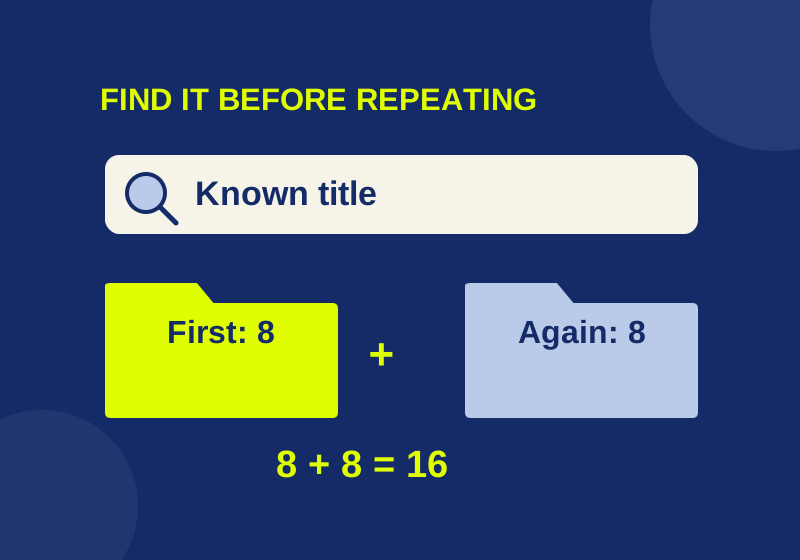
Chrome bookmarks imported but missing? Find the folder and avoid duplicates
An eight-link import became sixteen when repeated. Find the first collection before importing again.
SOURCE-CHECKEDWeb research
Firefox bookmark tags: find saved pages across folders
Find saved Firefox pages across folders with shared tags and a tested six-link practice file.