TESTED · FREE DIGITAL LIFE
How to download free art from The Met and size it for a real project
Download an Open Access image from The Met, check its individual rights, and calculate slide crops, square crops and print dimensions.
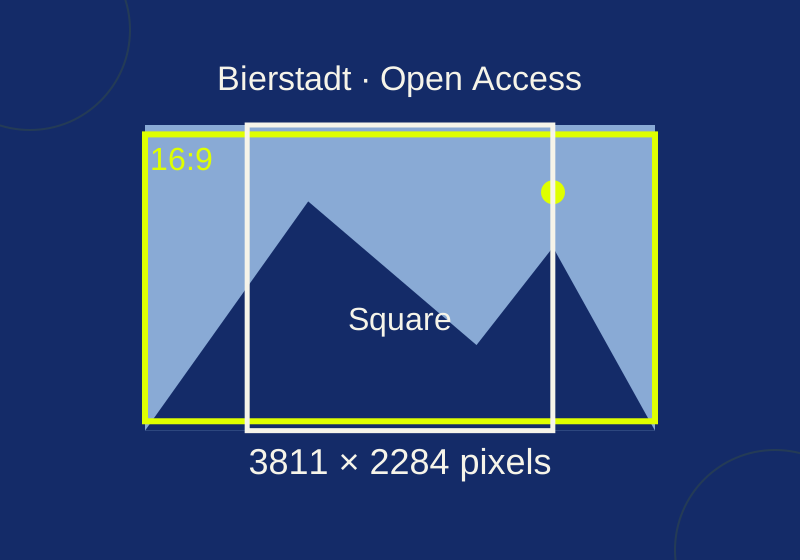
The Met’s Open Access collection is a place to find an art image for a slide, collage, or wallpaper. Filter the collection for Open Access, check the individual artwork’s rights indication, then download its image. Once you have the file’s pixel dimensions, you can decide whether your project should show the whole picture or crop it.
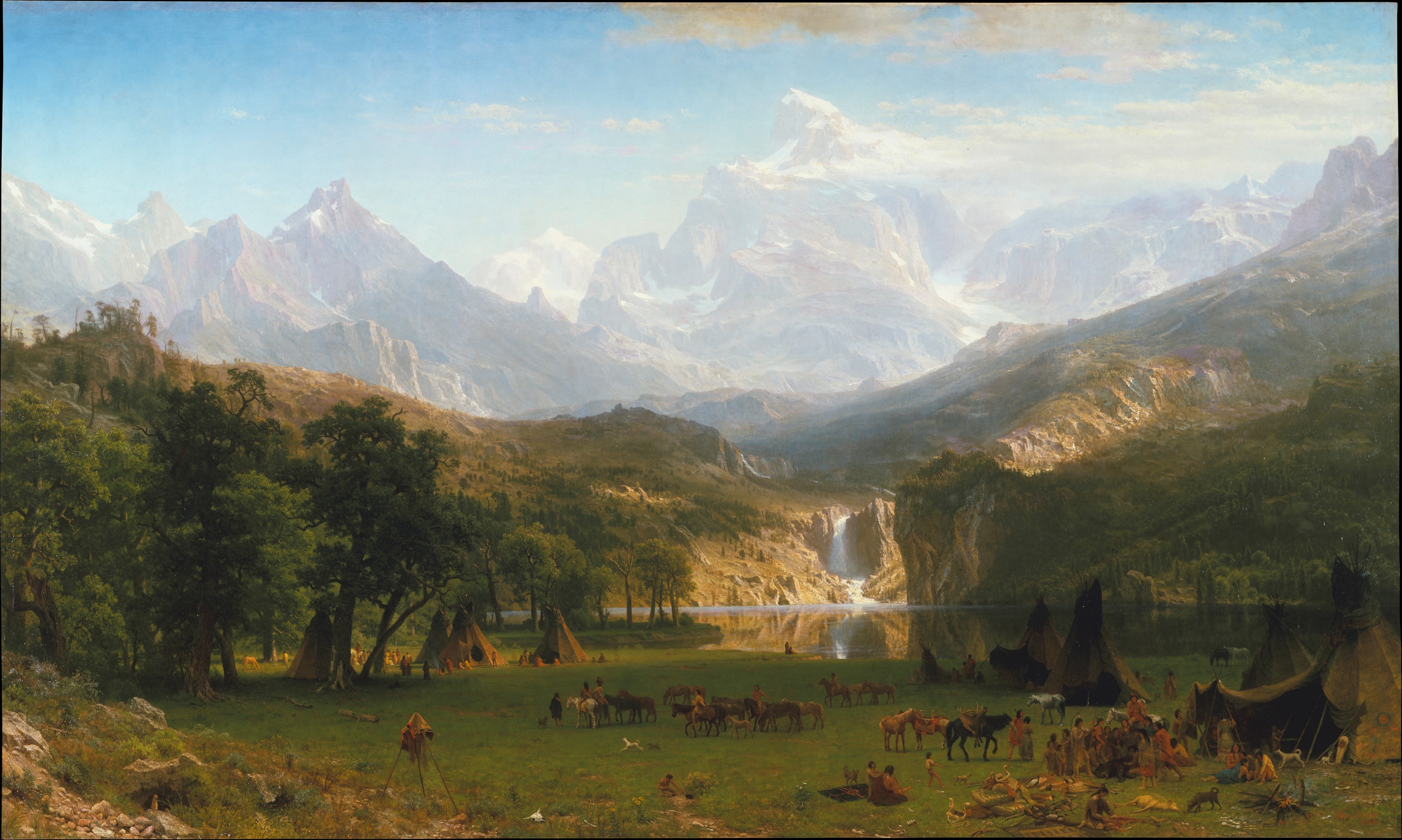
Albert Bierstadt’s The Rocky Mountains, Lander’s Peak is a concrete example. The JPEG downloaded on October 4 measured 3,811 × 2,284 pixels. That gives you enough information to plan a 16:9 slide, a square collage panel, or a print size using the full file rather than the small image shown in search results.
Find an Open Access image
Start with The Met’s collection search filtered to works with Open Access images. The search interface identifies this filter as “Has Open Access image.” Open a result that interests you, then check that work’s own page before using its image.
For a ready-to-try example, open The Rocky Mountains, Lander’s Peak. The record identifies Albert Bierstadt as the artist, dates the work to 1863, and shows a Public Domain indication and a Download Image control. Its accession number is 07.123, which is useful when you want to identify the exact museum record later.
The result image helps you choose a work; the download supplies the image to inspect for your project. Begin with the downloaded file when calculating a crop. A thumbnail’s displayed size tells you little about how many pixels the downloaded image contains.
Check the image’s rights
The filter narrows the search, but the individual record is where you confirm that the image you chose carries the expected indication. In this example, the artwork page shows “Public Domain.” An October 7, 2026 check of The Met’s public API record for object 10154 also reported isPublicDomain: true and identified the original image as DT82.jpg. Check the corresponding record when you choose another work.
According to The Met’s Open Access overview and image resources policy, its Open Access images of works it believes to be in the public domain are made available under CC0 for sharing and reuse, including commercial and noncommercial uses, without a museum image fee or permission request. Not every image on the museum’s website is Open Access. The museum also provides CC0 collection data for some records whose images are restricted; a record’s reusable data does not make its image reusable.
For a slide or collage, a useful credit is: “Albert Bierstadt, The Rocky Mountains, Lander’s Peak, 1863, The Metropolitan Museum of Art, accession 07.123,” linked to the artwork record. The Met does not require an Open Access credit, but this reference makes the exact artwork easy to find. The Met’s image and data FAQ notes that CC0 does not resolve separate patent, trademark, privacy, or publicity questions, or imply museum endorsement.
Download the original JPEG
On the Bierstadt record, Download Image opened the original JPEG, DT82.jpg in the recorded October 4, 2026 test. A direct request for that URL returned a JPEG, and the downloaded file decoded at 3811 × 2284 pixels. If the image opens in a browser tab, use your browser’s image-saving control to keep a copy for editing; the download check used a direct request after the button opened the JPEG.
Keep the original file while you try layouts. For example, a slide may need a wide crop, while a collage panel may need a square one. Starting each version from the 3811 × 2284 image lets you make those choices from the same source rather than from a previous crop.
Fit it to a 16:9 slide or wallpaper
The JPEG’s width divided by its height is about 1.669. A 16:9 frame has a ratio of about 1.778, so the artwork is slightly less wide than that frame. You have two design choices:
- Contain the whole image: Scale it until all four edges fit inside the frame. In a 1920 × 1080 layout, scaling this image to 1080 pixels tall gives it a width of about 1802 pixels. That leaves roughly 118 pixels of empty width in total, or about 59 pixels on each side if centered. You can use that space as a deliberate margin or background.
- Cover the frame: Fill the frame and crop what extends beyond it. Using all 3811 source pixels of width for a 16:9 crop calls for a height of 2143.6875 pixels. Compared with the original 2284-pixel height, that removes 140.3125 pixels vertically, about 70 pixels from each edge if centered.
Those fractional figures describe the geometry, not an exported file. A pixel editor must use whole pixels, so the exact crop boundary and final dimensions depend on the choices you make there. You can then reduce the cropped image for a 1920 × 1080 project; the source has more pixels than that target in both directions.
Look at what the crop removes before accepting it. The artwork includes a lake, mountains, and small foreground figures and tents. A centered crop is a starting point, but moving the crop up or down changes how much foreground or sky remains. For a slide with text, you might instead keep the whole image within the frame and use the side margins for a title. Use them as layout options to inspect in your own editor.
Make a square collage panel
A square crop can use the image’s full 2284-pixel height, producing a 2284 × 2284 selection. It removes 1527 pixels of width. Centering that selection would take about 763.5 pixels from each side, subject to whole-pixel rounding.
That is a much larger change to the composition than the 16:9 crop. Mark the people, tents, shoreline, or other details you want to retain, then position the square around them. If the details you need do not fit together, a square canvas with the complete landscape inside it preserves more of the artwork and leaves space around it. You can build a square panel around a complete rectangular image.
Calculate a print size from the pixels
Pixel dimensions also let you calculate how large the file would be at a chosen pixel density. At a hypothetical 300 pixels per inch, 3811 ÷ 300 and 2284 ÷ 300 give about 12.70 × 7.61 inches. At 150 pixels per inch, the same calculations give about 25.41 × 15.23 inches.
Changing that density number changes the calculated inches; it does not add pixels to the file. These figures are planning math, not a physical print or a finding about print quality. If you crop first, calculate again using the crop’s pixel dimensions. A 2284 × 2284 square crop, for instance, no longer has the original file’s 3811-pixel width.
Before exporting any version, write down the size your project needs and check the resulting image’s pixel dimensions. The Met image project notes provide fields for output size, aspect ratio, crop choice, details to retain, credit, and the date you checked the record’s rights. They also preserve the source link and arithmetic for this example. Add your chosen dimensions and crop position so you can make another version from the original later.
If “Download Image” is missing
Return to the individual artwork record and check its image indication rather than assuming that every Met search result has the same reuse terms. The absence of a download control by itself does not establish why it is missing. The image resources policy explains that restricted or unavailable images may require a licensing request, which may involve a fee. You can also return to the Open Access filtered search and choose a record with a clearly indicated downloadable image.
The individual artwork page and original JPEG download were checked October 4, 2026. On October 7, the museum policies and public object record were checked and the sizing calculations were verified. The crop and pixel-density examples are planning calculations; finished exports and physical print quality were not tested.
KEEP GOING
More to explore.
TESTEDFree digital life
Free Google Fonts: download Lora and check it before your next design
Use an editable Lora proof sheet to see your own text at headline, body and small-detail sizes.
SOURCE-CHECKEDFree digital life
Find free LibriVox audiobooks and choose a narrator before downloading the whole book
The same classic can have a solo narrator, changing chapter readers or a dramatic cast.