SOURCE-CHECKED · BUSINESS DOCUMENTS
SharePoint required metadata missing after upload: fix the file and find the cause
Fix missing required metadata after a SharePoint upload, resolve Office save errors, and separate blank properties from checkout or visibility problems.
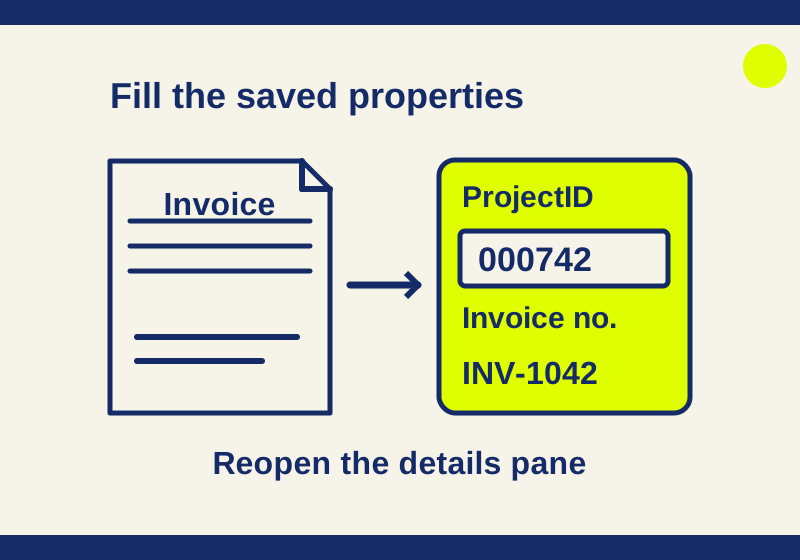
If a SharePoint upload finishes with a required property still blank, select the uploaded file and complete its properties in the details pane. The modern upload dialog can skip the required-field prompt. An Office save error, a missing column in the view, and a colleague who cannot see the file need different follow-up checks.
Start with the file’s saved properties and its assigned content type. That avoids changing an entire library because one invoice is missing its project number.
Fill the actual property, not the document text
In the receiving library, select the file using its selection icon. Clicking the filename opens the document; selecting its row lets you inspect the metadata. Open the information or details pane. Click a property value, enter the new value, and press Enter to save it. For several properties on one file, choose Edit all, fill the fields, and select Save. Reopen the pane to see the saved values. In the classic experience, use the item’s More menu and Edit properties. These are Microsoft’s documented property-editing paths.
For an invoice, the document might already contain a project number on its first page. That does not populate a separate ProjectID column. Naming the file invoice-project-000742.docx also does not enter 000742 into that property. Edit the field displayed by SharePoint.
The properties available to you depend on what the library owner has assigned and what your permissions allow. If a field is absent from the form, note the actual content type and field name before escalating it. Do not keep reuploading a file to make a hidden field appear.
A complete four-file repair
The following records are a modeled library, not a SharePoint export. It has three content types:
- Invoice requires ProjectID, InvoiceNumber, and Department. Department accepts Finance or Operations.
- MeetingNotes requires ProjectID and MeetingDate.
- Document has no required custom fields.
| File | Content type | Before | Finished properties |
|---|---|---|---|
invoice-1042.docx |
Invoice | ProjectID and InvoiceNumber blank; Department Finance | ProjectID 000742; InvoiceNumber INV-1042; Department Finance |
invoice-1043.docx |
Invoice | All three required fields already supplied | ProjectID 000742; InvoiceNumber INV-1043; Department Finance unchanged |
kickoff.docx |
MeetingNotes | ProjectID and MeetingDate blank | ProjectID 000742; MeetingDate 2026-10-07 |
readme.docx |
Document | Custom fields blank | No change needed under this schema |
Two files are incomplete before the repair, with four missing required values in total. After the stated edits, all four rows satisfy their own content type’s requirements. The blank InvoiceNumber on the meeting notes is valid, as are the readme’s blank custom fields.
Download the before CSV, finished CSV, field schema, and material instructions to examine the records. The first CSV also shows two modeled checkouts; the finished CSV illustrates their release. No live property edit or check-in was performed.
ProjectID is text in this example because the zeroes in 000742 belong to the identifier. A spreadsheet that converts it to the number 742 has changed the value. Import the ProjectID column as Text when examining these CSV files. The native parser used for the example kept all six characters, but that does not guarantee how your spreadsheet’s default import will interpret the column.
Why “required” did not produce an upload prompt
Microsoft documents this modern-library behavior: a column can have “Require that this column contains information” set to Yes while the upload does not ask for a value. The same documented case says the file is not checked out by default when viewed through the classic experience. Missing metadata therefore does not establish that the file has been automatically checked out.
For invoice-1042.docx, the repair is to select the uploaded file, identify Invoice as its content type, and enter the two missing values. Department is already Finance, so it stays unchanged. Once ProjectID and InvoiceNumber appear in the reopened properties, this example’s metadata task is finished. Another upload of the same document would add no information to the empty fields.
Microsoft suggests classic view for the affected upload-prompt scenario. That is an option for a library owner who needs the prompt during intake. A workflow that must collect properties before any submission also needs to account for its other entry paths, such as synced folders; repairing one modern upload does not enforce every entry path.
Check which content type owns the requirement
Columns attached to a content type can be required, optional, or hidden. Microsoft’s content-type instructions describe those settings and the choice to propagate changes to inheriting sites and lists. An administrator can review them in the content type gallery; a Global Reader cannot access that gallery.
For kickoff.docx, inspect MeetingNotes. Its missing field is MeetingDate, not InvoiceNumber. If the item is wrongly assigned Invoice, ask the owner which type the document should use. Making InvoiceNumber optional on the parent Invoice content type would change the requirements for other invoices while leaving the meeting-notes classification problem unresolved.
A required field that the user cannot see or edit is a configuration or access question for the owner. Send the file URL, its current content type, the missing field’s name, and the form you opened. Those details let the owner examine the appropriate field instead of changing a similarly named column elsewhere.
View columns are another surface. A compact view that only shows Name and Modified can hide the displayed ProjectID column while the file still has a saved value. Microsoft’s library overview explains selecting displayed columns and opening the information pane. Read the file’s properties before treating a missing view column as missing data.
Fix the Office save error at the property form
After uploading a file with missing required metadata, an Office application may display REQUIRED PROPERTIES or say that the file cannot be saved because properties are missing or invalid. Use its Edit Properties or Go to Document Properties action, enter the required value, and retry the save. That is the repair in Microsoft’s upload troubleshooting instructions.
In the modeled Invoice form, valid values are ProjectID 000742, InvoiceNumber INV-1042, and Department Finance. Typing Finance Team where the choice field allows only Finance or Operations would not match this schema. A filled box can still contain an invalid value, so match the column’s actual type and permitted entries.
The result you need is a successful Office save to the intended library, followed by the correct property values on that file. If the application still reports a specific invalid property, give that property and message to the owner; do not discard the document’s edits to silence a metadata error.
If another person still cannot see or edit the file
Use the exact library location first. A filtered view can omit a file whose metadata is complete. Then inspect its checkout, any required approval, and that person’s permissions.
Microsoft’s file guidance describes checkout as exclusive editing until check-in. Its new-file instructions say that a file created in a library requiring checkout is initially checked out to its creator; it must be checked in before others can edit. Content approval may separately be required before all permitted users can see it.
In the finished example, the two CheckedOutTo cells are empty to illustrate completed check-in. Their metadata values alone would not establish that step. If the actual file is checked out, preserve and save the intended changes, then check it in through the appropriate file action. Never use Discard checkout as a shortcut for another person’s unsaved work.
For a synced library, a File Explorer lock icon means the files are synced read-only. Microsoft lists permissions, checkout, and required columns or metadata as possible causes; local edits in that state will not sync. Inspect the server-side condition. Running an application as a Windows administrator does not supply a required ProjectID or grant SharePoint access.
Repair a batch without giving it the wrong project
Select multiple files only when the property value belongs to all of them. The details pane’s bulk property edit applies the supplied new value to every selected item, according to Microsoft’s bulk-edit instructions.
Here, the two invoices and kickoff belong to ProjectID 000742. A document for project 000743 must stay outside that selection. InvoiceNumber still differs for each invoice, and MeetingDate belongs to the meeting notes; fill those fields on their appropriate items. When a library offers grid editing, expose the columns you need, but use the individual details pane if that grid or field editor is unavailable in your configuration.
Microsoft sources checked October 7, 2026. The four-file CSV and schema were read and validated locally: two rows needed metadata repairs before, and all four meet the declared schema after. SharePoint upload enforcement, an Office save, check-in, and another user’s access were not tested in a tenant.
KEEP GOING
More to explore.
SOURCE-CHECKEDBusiness documents
Remove someone's OneDrive or SharePoint access: trace every permission route
Find why someone can still open a shared file after you remove a link, and close the right permission routes.
SOURCE-CHECKEDBusiness documents
Bynder vs Dropbox for brand assets: fix the search before you move
Build an eight-field brand taxonomy, add valid Dropbox tags and follow specific lookup routes for approved logos and campaign images.