SOURCE-CHECKED · BUSINESS DOCUMENTS
SharePoint default sensitivity labels: why some files stay unlabeled
Find why SharePoint default sensitivity labels skip older files, manual labels, and some formats, with a downloadable ten-file coverage model.
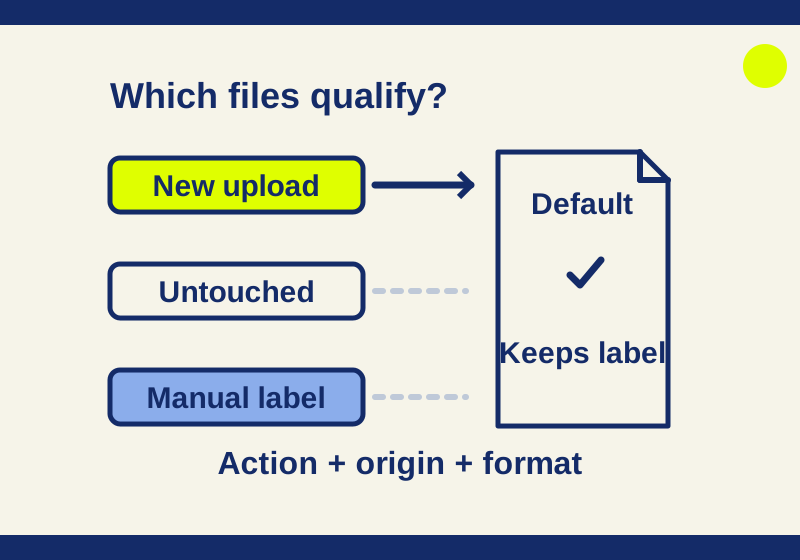
A SharePoint library’s default sensitivity label covers eligible new uploads and edited files. It leaves an untouched archive alone, preserves manually applied labels, and has file-type limits. If yesterday’s contracts still have blank Sensitivity cells after you enable the setting, those files may be behaving exactly as documented.
The useful question is which files have a qualifying action and an eligible starting state. A library with ten files can have only four candidates for its default label, as the example below shows.
What happens to an existing label?
The library default can replace a lower-priority label applied automatically or by a label policy. A manually applied label stays, even when its priority is lower. Higher-priority automatic and policy labels also stay. An unlabeled file must contain content and have a qualifying upload or edit; simply being stored in the library is insufficient. These are Microsoft’s library-default rules.
Two files that both say General can therefore have different outcomes. If a person chose General for an agenda, it remains General. If a policy supplied General for a presentation, the higher-priority library default can replace it. Recording only the displayed label name loses the fact that decides the result.
Ten files, four candidates
This worked example uses fictional labels in ascending priority: General 1, Confidential 2, Restricted 3. The library default is Confidential. The files are synthetic teaching records, not observations from a SharePoint tenant.
| File | Starting state and action | Expected outcome |
|---|---|---|
new-contract.docx |
Content, no label; uploaded | Candidate for Confidential |
old-contract.docx |
No label; left untouched | Remains unlabeled through this setting alone |
edited-budget.xlsx |
Automatic General; edited in Office for the web | Candidate for Confidential |
manual-agenda.docx |
Manual General; uploaded | Keeps General |
restricted-pricing.xlsx |
Automatic Restricted; saved in a Microsoft 365 app | Keeps Restricted |
policy-slide.pptx |
Policy General; saved in a Microsoft 365 app | Candidate for Confidential |
empty-note.docx |
No content; uploaded | Needs content before labeling |
signed-contract.pdf |
Content, no label; uploaded | Candidate if PDF support is enabled |
team-recording.mp4 |
No label; added to the library | Cannot receive the library default |
unknown-origin.docx |
General, application method unknown; web edit | Establish the label’s origin before predicting replacement |
With PDF support enabled, four records qualify in this model. Turn PDF support off and the count falls to three. Neither number measures actual tenant coverage: the model assumes the relevant licensing, file-labeling configuration, and label settings are already correct.
Notice what a simple “blank Sensitivity cell” report would miss. The old contract needs a separate archive-classification decision. The empty note needs content. The video belongs to a different labeling path. The unknown-origin document needs its label history investigated. Treating those rows as four copies of the same upload failure would send the administrator toward the wrong repair.
Download the ten-file CSV, local planning script, and input instructions. Save them together and run this command with Node.js:
node label-coverage.mjs label-inputs.csv Confidential 2 trueThe final argument declares whether PDF support is enabled. Use false for the second example. The output gives each file’s expected label, reason, and application timing. It reads your CSV and applies the rules locally; it has no SharePoint connection and changes no file labels.
For your own input, keep the six headers: File, Action, ExistingLabel, AppliedBy, Priority, and HasContent. For example, an edited spreadsheet with an automatically applied Low label at priority 0 can qualify for a High default at priority 7. Change only AppliedBy to manual and Low is retained. Change the existing priority to 9 and the higher-priority label is retained. These counterexamples also work with filenames outside the supplied fixture.
Why a new upload can still look unlabeled
Microsoft documents different timing for uploads and app saves: uploads can take a few minutes, Office for the web can apply a label without delay, and Microsoft 365 app saves receive it after the app closes. Save As can introduce a delay unless coauthoring for encrypted files is enabled. The timing comes from the library-default documentation.
For policy-slide.pptx, look at how it was saved before deciding whether its empty or unchanged label is unexpected. A desktop save with PowerPoint still running has a different timing boundary from a completed browser edit. Closing the document tab and leaving the desktop application running also does not satisfy the documented app-close condition.
File support needs a separate check. Microsoft’s SharePoint and OneDrive labeling guidance lists .docx, .docm, .xlsx, .xlsm, .xlsb, .pptx, and .ppsx for applying labels in Office for the web or SharePoint. PDF support must be enabled separately. MP4 supports manual labeling but cannot receive automatic or default labeling. Recognizing a label on an uploaded legacy Office document is a different capability from applying a new default label.
An encrypted upload has another boundary: its uploader needs at least View usage rights for SharePoint to recognize the label and process its contents. A successful file upload alone does not establish that processing occurred.
Configure the library without confusing it with another feature
For an existing library, open Settings, then Library settings, and select Default sensitivity labels in the settings pane. Choose the label from the dropdown. A new library exposes the same default setting in its creation pane. These steps are in Microsoft’s configuration instructions.
The selector needs a published label with the Files & other data assets scope, available to the selecting user. File labeling must be enabled; library IRM is incompatible. The standard default also excludes encryption with user-defined Word/Excel/PowerPoint permission prompts, content-access expiry other than Never, or Double Key Encryption. Keep the separate preview choice “Extend protection on download, copy, or move” out of this configuration. Microsoft lists these requirements and exclusions.
The configuring person needs site admin permission. Check that actual role instead of assuming that permission to upload or edit a file grants it. Microsoft’s role reference distinguishes site admins from members with Edit permissions and ordinary site owners; associated group or team owners can also be included as site admins.
Which licenses and users count?
The Purview service description has a row specifically named “Apply default sensitivity labeling for SharePoint Document library.” It lists Microsoft 365 E5/A5/G5; Microsoft Purview Suite/EDU/GOV/FLW and Microsoft Defender + Purview Suite FLW; Microsoft 365 E5/A5/G5/F5 Information Protection and Governance; and Office 365 E5/A5/G5. Appropriate base licensing still matters. E3 or Business Premium alone does not appear in that feature row.
For shared locations, Microsoft requires the appropriate license for owner and member roles when the Purview feature is used. It excludes visitor and view-only roles from that rule; users with relevant Purview roles are also beneficiaries. Suppose a site has two owners, eight members, and 17 separate view-only visitors. The owner/member population is ten people. Licensing only the administrator who selected the default would leave the other benefiting roles unaccounted for. This example assumes those populations do not overlap and does not replace a check of any other roles or benefits.
Prove the label came from the library
A tooltip saying that labeling was automatic can also describe a policy-applied label. In the Applied sensitivity label file audit event, Microsoft identifies SensitivityLabelEventData with ActionScourceDetails equal to 6 as library-default application. That is the field spelling in the official audit instructions. An Updated list event records the library configuration change; it does not show that every stored document received a label.
For a file that remains untouched, record the archive work separately from configuring a default for future activity. For an eligible new upload, use its file-label event and documented timing. Those records answer different questions, and neither requires inventing a successful tenant-wide rollout.
Microsoft sources checked October 7, 2026. The CSV and script were executed locally with synthetic inputs, including the manual-label and higher-priority counterexamples. No SharePoint tenant was tested or changed.
KEEP GOING
More to explore.
SOURCE-CHECKEDBusiness documents
SharePoint content approval: who sees a draft, and why old files stay Approved
Separate automatic approval of old library files from review decisions on new submissions and draft audience.
SOURCE-CHECKEDBusiness documents
Remove someone's OneDrive or SharePoint access: trace every permission route
Find why someone can still open a shared file after you remove a link, and close the right permission routes.