SOURCE-CHECKED · APPS & THE WEB
How to use Radio Garden to find stations and revisit your favorites
Browse Radio Garden by city or station, make a listening route, and keep useful station notes. Includes current favorites-transfer controls.
Open Radio Garden to browse radio by place. Green dots mark locations on its globe, and Search accepts a country, city, or station name. You can move around the map when you want to explore, or type a name when you already know where you want to go.
Keep each station’s name and city together so you can find it again after trying several unfamiliar broadcasts.
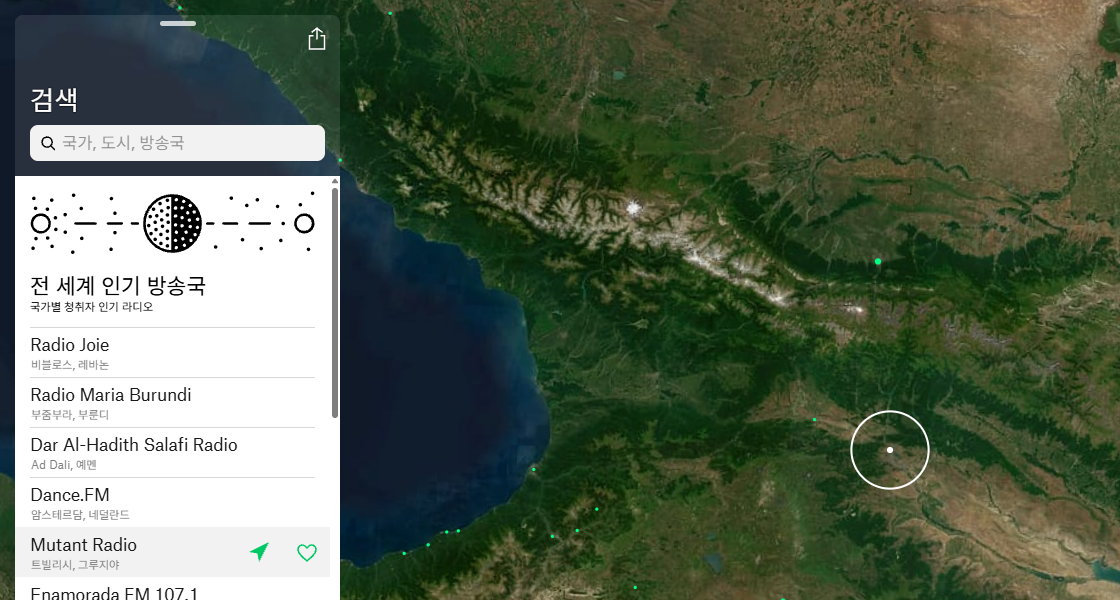
Radio Garden’s search and globe view, captured October 2, 2026. This session’s interface labels are in Korean.
Search for a city before exploring its dots
For a particular destination, open Search and type its city name. Starting this way helps when you cannot distinguish the green points in a crowded part of the globe. Once you have found the area, use the zoom controls and choose a location to explore.
Read the station name and city in the player after selecting something. In the October 2 observation, selecting Mutant Radio changed the player from WBS FM 89.7 in Seoul to Mutant Radio in Tbilisi. The next map view showed the Caucasus. That gives you two checks on your selection: the named station and the map’s location. The player was observed loading; its audio was not heard or verified.
You can also search a station name directly. That is useful when you wrote down a find previously and do not want to locate its dot again. Copy the name exactly into your notes, with its city, so you have more than a vague memory of the part of the world you visited.
The Search panel inspected in October also had stations labeled listener favorites by country and a separate recently added list. These give you starting names when you have no destination in mind. The label “listener favorites” is the service’s presentation, not a verified worldwide popularity ranking.
Four names to start a search
The October 2 panel supplied these search starters. Their locations are the observed directory information; current audio and availability need to be checked when you visit.
| Station name | City shown in the directory |
|---|---|
| Dance.FM | Amsterdam |
| Mutant Radio | Tbilisi |
| Radio Joie | Byblos |
| Relax Instrumental | Tallinn |
A station’s name can suggest what to expect without confirming what is playing now. Tbilisi does not establish that Mutant Radio’s program is in Georgian, and Radio Joie’s name does not establish French-language speech. Listen to the current broadcast before choosing it for a language lesson or a particular kind of music.
Make a route you can actually follow
For a familiar-place route, start with a city you have visited or would recognize on the map. Pick a station, then note whether its current program interests you. Move to another city using the globe. You can follow a coastline, go inland, or choose a more distant place; this is a browsing suggestion, not a route with guaranteed stations at every stop.
For language practice, start with a city or country associated with the language you are studying. Let the broadcast decide whether you stay. Speech you recognize gives you something to work with; a music program with little speech may be less useful for that particular session, however much you enjoy it.
Record a few words you understood and the kind of program you heard. On a later visit, compare what is actually playing then. This keeps your language practice grounded in audible material rather than the station’s place on the map. These are proposed listening activities; no language-practice or audio comparison was performed for this article.
Keep a small listening log
Download the blank listening notes if you want a reusable plain-text file. It includes the dated starter names above and empty fields for your own listening. No completed audio observations have been supplied.
For each find, record its name, city, the date and your local listening time. Add what you actually heard and one reason to keep or revisit it. A station you liked for speech practice deserves a different note from one you want as music while cooking. Your reason tells you which station to try the next time you have that purpose.
If the browser shows a station-specific page, keep its URL with the note or bookmark it. The name and city remain useful if you move to another browser and do not have that bookmark available. The worksheet also has a second-visit space so you can compare a return visit without overwriting the first one.
Find the favorites and transfer controls
The observed player has a favorite control beside the selected station name, and Favorites appears in the navigation. Those are the places to look when you want to keep a station in the service itself.
The current Settings page also has a Transfer Favorites section. Its controls include Send Favorites with a create-transfer-code option, and Receive Favorites with an enter-transfer-code option. The controls were read in the October 7 public browser interface, without generating or entering a code.
If you want to move favorites, begin with those controls and follow the prompts presented on each device. Keep your station notes alongside that process. Favorite persistence, automatic syncing, and a completed code transfer were not tested, so this is a description of the available entry points rather than a successful transfer walkthrough.
Settings also showed Increased Contrast and Globe Dots Size controls. Look for them if the map is difficult to read. Their presence was checked; no preference was changed and no visual effect was tested in this inspection. Labels may be localized, as they are in the Korean-language screenshot above.
When the player is loading or silent
First read the player to check that it shows the intended station. A name change and a map move confirm your selection, even if audio has not started. A fresh session may show a prompt to press play; that prompt appeared in the October 7 browser check.
Check the player’s play and volume controls, then your browser tab and device sound. These are general checks, not proven fixes for a Radio Garden error. Try another station to see whether the problem is confined to your current selection. If station details provide an official broadcaster website, it gives you another place to investigate that station.
Loading alone does not identify the cause. Keep the exact station name and city when describing a problem, and distinguish “the player selected the right station” from “audio played.” That same distinction helps you decide whether to keep browsing or return to the station later.
Public search, station selection, and map observed October 2, 2026; public Settings controls read October 7. Audio, current stream availability, favorite persistence, automatic syncing, and code transfer were not verified.
KEEP GOING
More to explore.
SOURCE-CHECKEDFree digital life
Free books in Libby: find something available now
Real library catalog examples show why availability, format and edition matter before you borrow.
TESTEDApps & the web
Find field-recorded nature sounds on Earth.fm and check free access
Recording details tell you the place and artist; the player and membership page explain what you can hear for free.